
Download TimeTracker – Firefox extension for web‑time monitoring
Overview
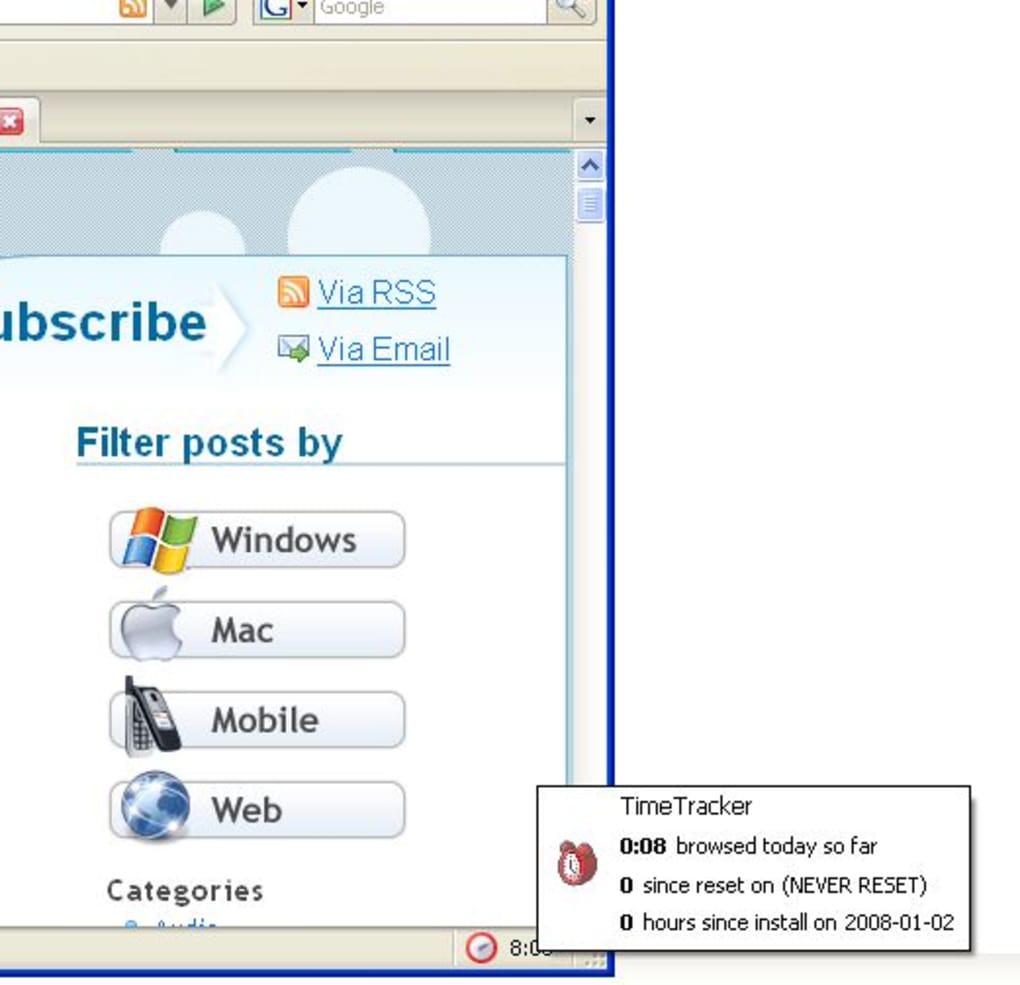
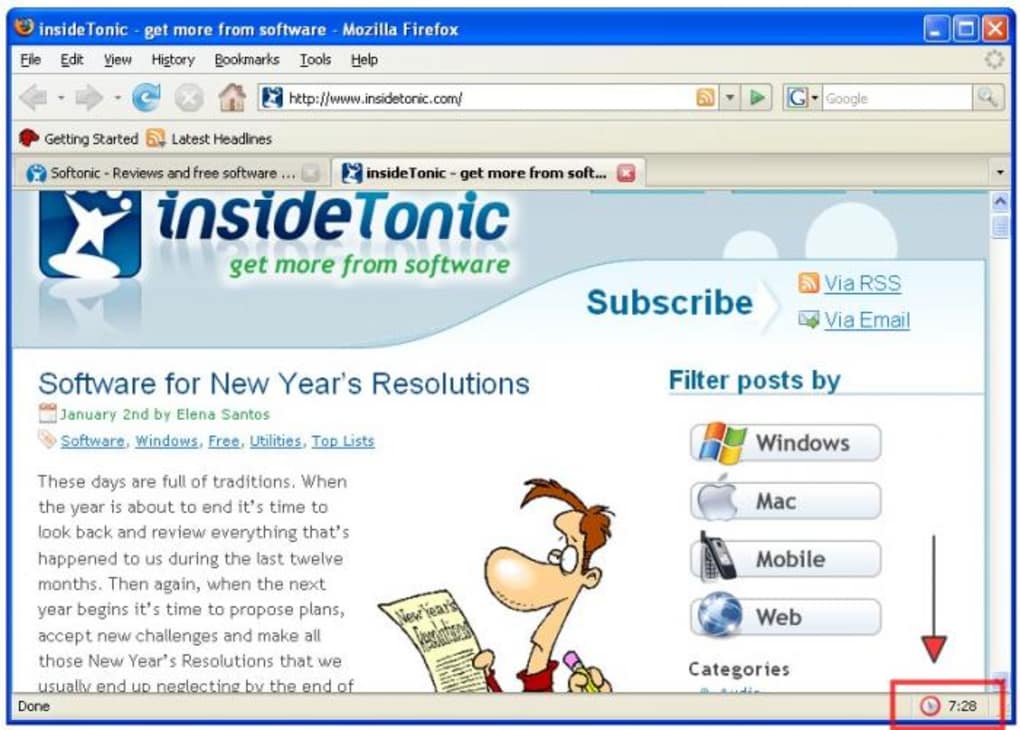
In an age where endless scrolling can silently steal hours from our day, TimeTracker steps in as a lightweight, unobtrusive Firefox extension designed to make you aware of the time you actually spend browsing the web. Once installed, a tiny digital clock appears in the bottom‑right corner of the browser window, continuously counting the minutes and seconds you spend on any web page. By simply hovering over the clock, you gain instant access to extended statistics such as total browsing time since installation or the last reset.
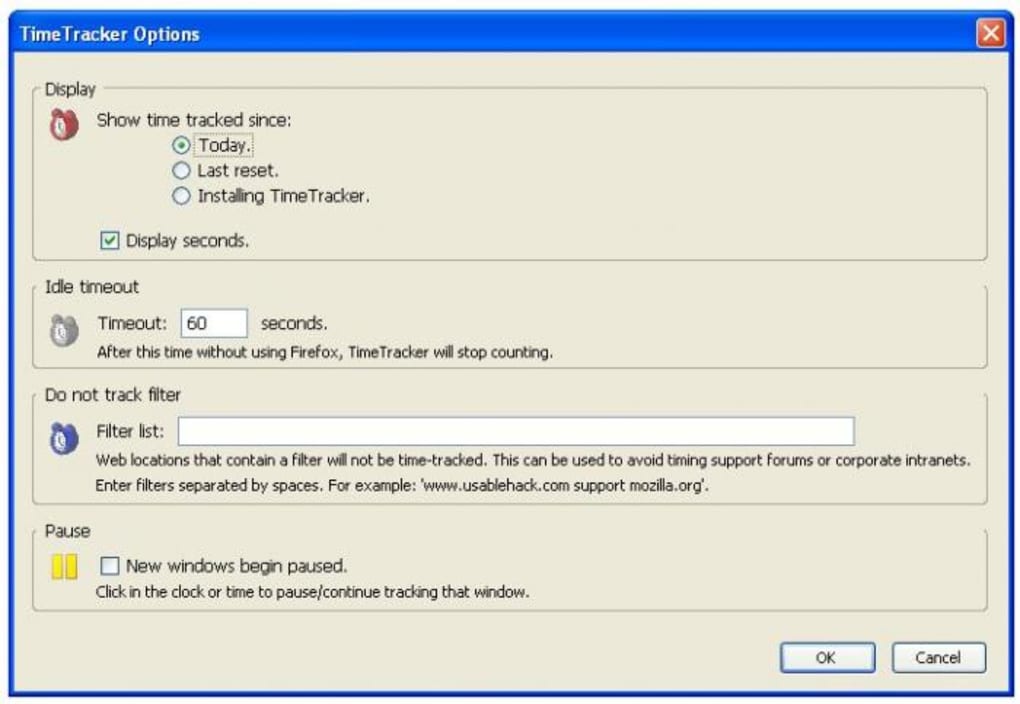
This real‑time feedback helps you spot patterns of procrastination, set personal limits, and reclaim valuable work or study time. While the current version tracks time on a global basis—meaning it does not differentiate between individual sites—it does allow you to whitelist domains that you consider “productive” (for example, a corporate intranet or a research portal) so that they are excluded from the tally. Although advanced per‑site analytics and exportable reports are not yet available, the developer’s roadmap promises these features in upcoming releases.
For anyone looking for a free, secure, and easy‑to‑use tool to keep web‑time in check, TimeTracker offers a straightforward solution that integrates seamlessly with Firefox on Windows, macOS, and Linux.
Features, Installation & Usage
Key Features
- Real‑time clock displayed on the browser UI.
- Hover‑over tooltip with total browsing time since install or last reset.
- Domain whitelist to exclude work‑related or essential sites from counting.
- Simple reset button for daily or weekly tracking cycles.
- Lightweight codebase that does not affect page load speed.
- Free and open‑source, with regular updates through Mozilla Add‑ons.
Installation Guide
Installing TimeTracker is as simple as clicking the “Add to Firefox” button on the official Mozilla Add‑ons page. The process takes only a few seconds:
- Navigate to the TimeTracker page on addons.mozilla.org.
- Click the Add to Firefox button.
- A confirmation dialog appears; select Add to grant the necessary permissions.
- Firefox will automatically download and enable the extension. A small clock icon will appear at the bottom‑right of any new tab.
No reboot or additional software is required. The extension stores its data locally, ensuring that your browsing statistics remain private and are not transmitted to third‑party servers.
How to Use TimeTracker Effectively
Once the clock is visible, you can start monitoring your browsing habits immediately. Hover over the clock to see the cumulative time. To reset the counter, simply click the clock; a confirmation prompt will appear to avoid accidental resets. If you need to exclude certain websites (e.g., your company's internal portal), open the extension’s options page via the Firefox Add‑ons Manager, add the domain to the whitelist, and save changes. The extension will then ignore any time spent on those sites, allowing you to focus on truly discretionary browsing.
Compatibility
TimeTracker runs on any operating system that supports the Firefox browser, including Windows 10/11, macOS 10.15+ (Catalina and later), and most Linux distributions with a recent Firefox release. Because it is a browser extension rather than a standalone application, it inherits Firefox’s own security updates and sandboxing, making it a secure choice for both personal and professional environments.
Pros & Cons
Pros
- Free and open‑source, with no hidden fees or subscriptions.
- Minimalist UI that stays out of the way while still providing constant feedback.
- Domain whitelist gives you control over what counts as “productive” time.
- Lightweight performance impact – no noticeable slowdown on modern browsers.
- Regular updates through Mozilla’s trusted add‑on ecosystem.
Cons
- Only tracks total browsing time; does not break down usage per individual site.
- No built‑in export or advanced reporting features in the current version.
- Limited to Firefox; users of Chrome, Edge, or Safari need alternative tools.
- Requires manual resetting if you want daily or weekly summaries.
- Advanced features like per‑site analytics are still “planned” and not yet available.
Frequently Asked Questions
Is TimeTracker safe to use with corporate data?
Yes. TimeTracker stores all timing data locally in your browser profile and never transmits it to external servers, ensuring that sensitive corporate browsing habits remain private.
Can I track time on specific websites?
The current version tracks time globally. However, you can exclude sites via the whitelist feature, and per‑site tracking is slated for a future release.
Does TimeTracker work on mobile Firefox?
At this time the extension is only available for desktop Firefox. Mobile browsers have different extension APIs, so a mobile version would need separate development.
How do I reset the timer?
Click directly on the clock displayed at the bottom‑right of the window. A confirmation dialog will appear; confirm to reset the total browsing time to zero.
Is there a way to export my browsing data?
Export functionality is not included in the current release. The developer has indicated that CSV/JSON export options are part of the roadmap for upcoming versions.
Conclusion & Call to Action
For anyone who wants a quick visual cue about how much time they are spending online, TimeTracker delivers exactly that—simple, free, and secure monitoring directly inside Firefox. While it lacks granular per‑site analytics and export capabilities today, its core functionality, whitelist option, and minimal performance footprint make it a valuable addition to any productivity toolkit. If you’re ready to gain awareness of your browsing habits and start cutting down on unnecessary screen time, download TimeTracker now and let the little clock keep you accountable.







